
By Elmer Wenston, updated . 5 min read.
IPTV not working? The fastest way to the fix is to narrow down where the problem sits: your internet, your device, the player app, your login, your subscription or the provider. Each check below takes a minute or two and rules out one of them. Go through them in order and stop as soon as the picture comes back. If you are not sure how the parts connect, our guide to what IPTV is explains the chain from server to screen.
Step 1: Check your internet on the same device
Open another streaming app or a speed test on the TV or stick you use for IPTV.
- Nothing streams anywhere: the problem is your internet or Wi-Fi. Restart the router, wait two minutes, then try again.
- Other apps stream, IPTV does not: move on to step 2.
- Everything works but stutters: your speed may be too low for the number of screens playing. Count about 10 Mbps per HD screen and 25 Mbps per 4K screen (the FCC Broadband Speed Guide lists 5 to 8 Mbps for HD streaming and 25 Mbps for 4K); our guide to internet speed for IPTV shows how to test it properly, and IPTV buffering fixes go through every other cause.
Step 2: One channel or all of them?
This single question splits the problem in two.
| What you see | Where the problem is | What to do |
|---|---|---|
| One or a few channels fail, others play | That stream | Try again later, then report the channel to support |
| Every live channel fails, movies play | Live streams or your connection to them | Restart the app, then contact support |
| Everything fails, including movies | Login, subscription or app | Go to steps 3 to 5 |
| Channels play, the TV guide is empty | Guide data, not the streams | Refresh the EPG; see IPTV EPG explained |
Step 3: Restart the device and clear the app’s cache
Streaming sticks and smart TVs run for weeks without a full restart, and player apps fill their memory over time. Freezes, black screens and apps that close on their own are often fixed by:
- A full restart from the device’s settings menu, not just the power button on the remote.
- Clearing the player app’s cache in the device’s app settings.
- Keeping some free storage: on a stick that is almost full, apps slow down and fail to load.
Step 4: Check your login and your error message
If the app shows an error, read it carefully: it usually names the problem.
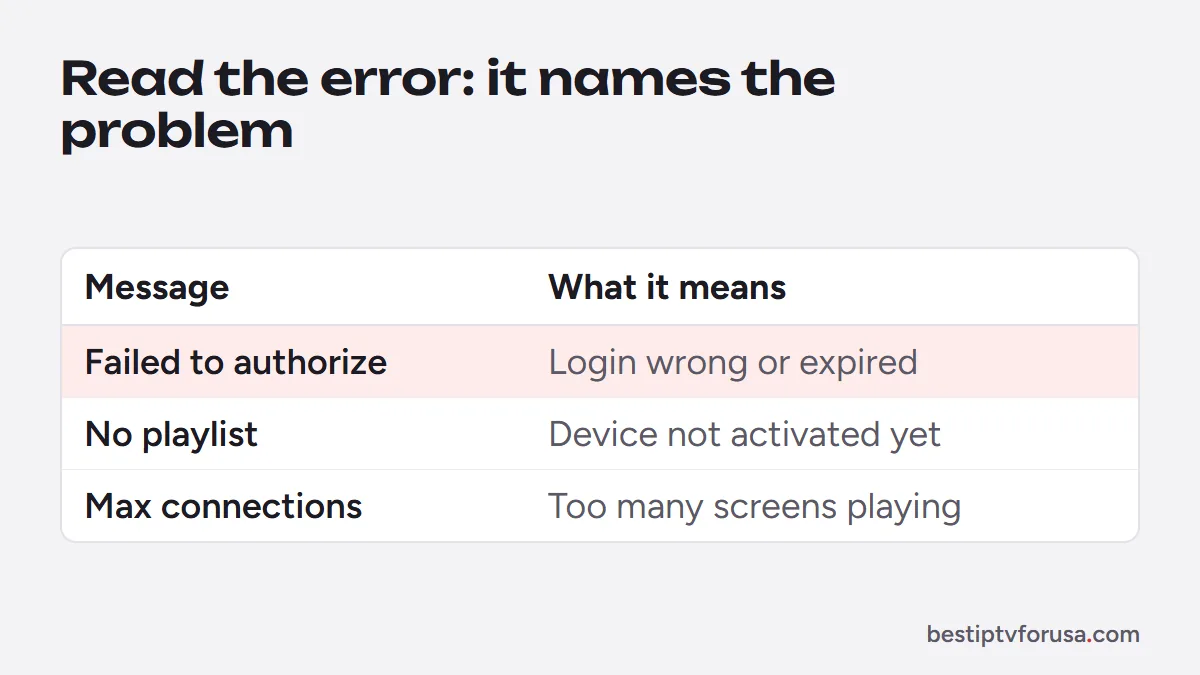
- “Failed to authorize”, “invalid login” or “authentication failed”: the username, password or server URL is wrong, or the line has expired. Retype them exactly from your welcome email, including
http://and the port in the server address. Our IPTV Smarters sign-in guide covers seven fixes in order. - “No playlist” or an empty list on a device-activated app (IBO Player Pro, Hot Player): restart the app after activation; if it stays empty, send the device ID screen to support again.
- “Too many connections”, “max connections” or a similar message: more devices are playing than your plan allows. Stop one, or add screens to your plan.
Step 5: Check that your subscription is active
An expired plan looks like a broken service: every channel stops at once. Check the end date in your welcome or renewal email. With BestIPTVforUSA nothing renews automatically, so the service ends on the last day unless you renew; the plans page shows every option.
Step 6: Update or reinstall the player app
After a device update, an old version of the player can stop working. Update the app from its store or its own settings. On a Fire TV, apps installed with Downloader update by installing again from the same code; our list of Downloader codes has them. If an update does not help, uninstall the app, install it again and sign in.
Step 7: Turn off the VPN to test
A VPN can slow streams or make the server refuse the connection. Turn it off, test for a few minutes, and if IPTV works without it, try a different VPN server or leave it off for streaming. Whether you need one at all is covered in VPN for IPTV.
Step 8: Contact support with the right details
If you reached this step, the cause is probably on the provider’s side or specific to your setup. Send one message with:
- the device and its model (for example, Fire TV Stick 4K);
- the player app and its version;
- the exact error message, or a photo of the screen;
- whether one channel or everything fails, and since when;
- what you already tried from this list.
These details help support find the cause faster. Our support answers day and night through the contact page.
IPTV not working: quick reference by symptom
| Symptom | Most likely cause | First fix |
|---|---|---|
| Nothing loads, other apps fail too | Internet or Wi-Fi | Restart the router |
| Loads, then freezes every few seconds | Wi-Fi or device memory | Ethernet or 5 GHz Wi-Fi, restart the device |
| Sign-in error | Login typo or expired line | Retype the login, check the end date |
| One channel black | That stream | Try later, report it |
| Guide empty | Guide data not loaded | Refresh the EPG |
| App closes on its own | Old version or full storage | Update the app, free storage |
| Works at home, not elsewhere | Network blocking or VPN | Try another network, turn the VPN off |
When the provider itself has stopped
Some IPTV services stop without warning, and customers only notice when every channel fails and support goes silent. The signs are a dead login, no reply from support and a website that has disappeared. This is why it pays to choose a provider with a free trial, a written refund policy and support you can reach before you pay; our guide to legit IPTV services and red flags lists what to check. If you are looking for a service you can test first, start with our 24-hour free trial.
Questions people ask
Why has my IPTV stopped working?
The most common reasons are a dropped internet or Wi-Fi connection, an expired subscription, a login typed wrong after an app update, a device that needs a restart, or too many screens playing at once. If none of these apply, the provider's server may have a problem: contact support.
How do I get my IPTV to work again?
Check that other apps stream, restart the device, clear the player app's cache, retype the login from your welcome email and check your end date. If it still fails, contact your provider with the exact error message.
How do I reset my IPTV?
Restart the device from its settings menu, then clear the player app's cache or data. If that is not enough, remove the playlist or profile in the app and add it again with the login from your welcome email.
Is IPTV down right now?
Check one thing first: if other streaming apps work on the same device but every IPTV channel fails, the problem is likely on the service side or your login. Contact your provider's support, which can confirm a server issue. Our guide is IPTV down? has a 2-minute check.
Why am I unable to connect to IPTV?
Usually a wrong server address, username or password, an expired line, or a VPN that blocks the connection. Retype the login exactly, check your end date and turn the VPN off to test.

Elmer Wenston writes the BestIPTVforUSA guides on IPTV setup, player apps and devices.