
By Elmer Wenston, updated . 4 min read.
IPTV buffering is the spinning wheel you see when the player app has shown all the video it received and is waiting for the next piece. Live TV can keep only a few seconds in reserve, so a slowdown between the server and your screen can show up quickly. The slowdown is often on the home side, in the Wi-Fi or the device, which is good news: those are the parts you can fix yourself in a few minutes. If the stream does not play at all, start with our guide for when IPTV is not working instead.
First, find where the buffering comes from
If the picture stops on a frame rather than showing a loading wheel, see IPTV keeps freezing, which covers that case.
Two quick tests split the problem in half:
| Test | Result | Where to look |
|---|---|---|
| Play another streaming app on the same device | It buffers too | Your connection or Wi-Fi: see fixes 3 to 5 |
| It plays smoothly | The player app, the device memory or the channel: fixes 1, 2 and 6 | |
| Switch to a different IPTV channel | Only one channel buffers | That stream: report it to support |
| Every channel buffers | Your side: work through the fixes below |
Fix 1: Restart the device properly
Streaming sticks and smart TVs often go weeks without a real restart, and player apps fill their memory over time. Use the restart option in the device’s settings, not just the power button on the remote, which often only puts the screen to sleep. On a Fire TV, use Restart in the Fire TV settings.
Fix 2: Clear the player app’s cache and free storage
Player apps store guide data and pieces of video. When that cache is full, or the device is almost out of storage, apps can slow down and buffer. Clear the cache from the device’s app settings and remove apps you no longer use. Keep some storage free on small sticks in particular.
Fix 3: Move closer to the router, or plug in
Wi-Fi is the most common weak spot in a home network. In order of effect:
- Restart the router if it has been on for weeks: unplug it for 30 seconds and wait for it to reconnect.
- Use an Ethernet cable if your TV or box has a port.
- Switch to the 5 GHz Wi-Fi band, which is faster and less crowded than 2.4 GHz.
- Bring the router and the TV closer, or add a mesh point near the TV.
- Use an Ethernet adapter for a streaming stick with no port; check that the adapter is made for your model.
Fix 4: Check the speed at the TV, at your viewing time
Run a speed test on the TV or stick, not on your phone, in the evening when you usually watch. Count about 10 Mbps per HD screen and 25 Mbps per 4K screen playing at the same time; the FCC Broadband Speed Guide lists 5 to 8 Mbps for HD streaming and 25 Mbps for 4K. Our guide to internet speed for IPTV shows how to add up several screens.
Fix 5: Reduce what else is using the connection
Large downloads, game updates, cloud backups and several video calls compete with your TV for bandwidth. Pause them during a live event, or schedule them overnight. Count every screen playing IPTV at the same time too: each one needs its own share of the connection, and each counts as one screen on your plan.
Fix 6: Adjust the player app
A few settings in the player app make a difference:
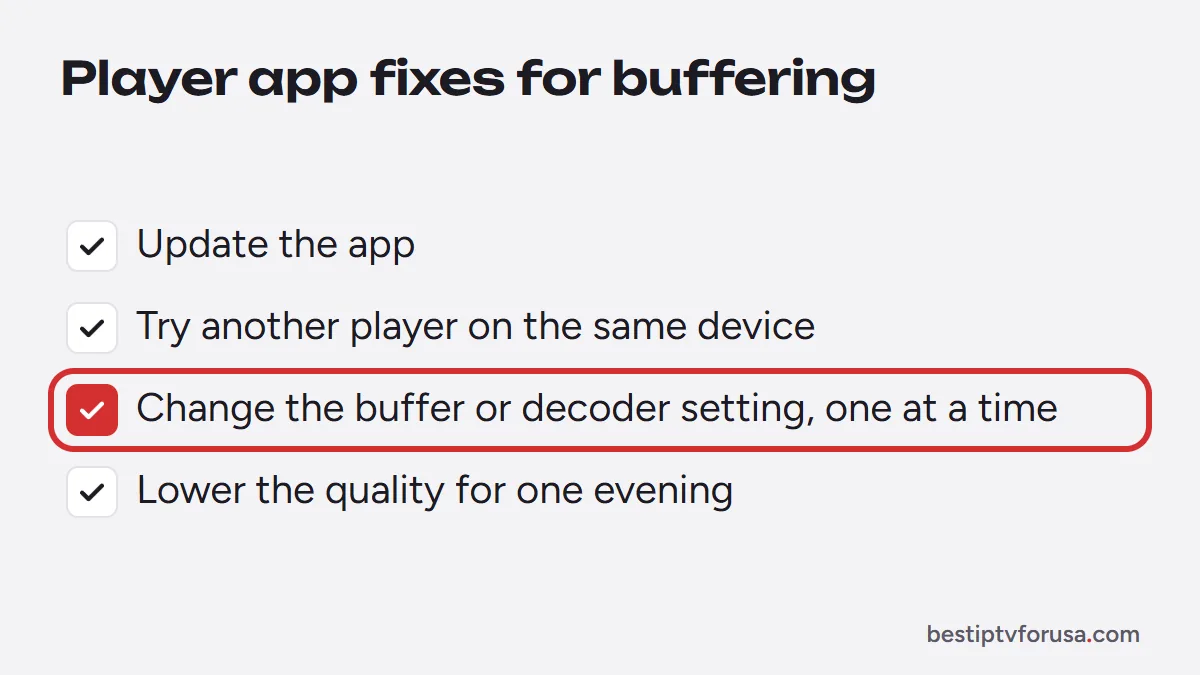
- Update the app. New versions fix playback problems.
- Try another player. If one app buffers and another does not on the same device, keep the one that plays smoothly; our comparison of the best IPTV player apps lists the options by device.
- Change the buffer or video decoder setting if your app has one. Some players offer a larger buffer or a choice between hardware and software decoding; try one change at a time and test the same channel. Our guide to the best buffer size for IPTV explains when to raise or lower it.
- Lower the quality for one evening. If HD plays smoothly and 4K does not, your setup has hit a limit; see what 4K IPTV needs.
Fix 7: Turn off the VPN to test
A VPN adds a step between your device and the server, and a busy or distant VPN server can cause buffering on its own. Turn it off and test the same channel. Our article on whether you need a VPN for IPTV explains when one helps.
When buffering is not on your side
If every fix above is done, other apps stream smoothly and only IPTV buffers, the cause may be on the provider’s side. Note the channel, the time and your device, then contact support. A good service will check the stream; with BestIPTVforUSA you can also test at your busiest hour during the 24-hour free trial before you pay.
IPTV buffering checklist
| Symptom | Most likely cause | Fix |
|---|---|---|
| Buffers every few seconds in the evening | Busy Wi-Fi or connection | Ethernet or 5 GHz, pause other downloads |
| Buffers after weeks without problems | Device memory or full cache | Restart, clear the cache |
| Only 4K buffers | Speed or device limit | Test the speed, try HD |
| One channel buffers | That stream | Report it to support |
| Buffers only with the VPN on | VPN server | Turn it off or change server |
| Buffers on one app, not another | Player settings or version | Update or switch the player |
Questions people ask
Why does my IPTV keep buffering?
Often because the video reaches your device more slowly than the player shows it. Weak Wi-Fi, a device that has not been restarted in weeks, a full cache, too many screens playing at once or a problem with one stream are the common causes.
Why is my TV buffering but the internet is fine?
A fast plan does not guarantee a fast connection at the TV. Wi-Fi can lose speed through walls and floors, and a stick with little free memory or storage struggles even on a good line. Test the speed on the TV itself and restart the device.
Does clearing the cache stop buffering?
It often helps. Player apps store guide data and pieces of video, and a full cache slows them down. Clear it from the device's app settings, then restart the device.
How do I stop buffering on a Firestick?
Restart it from the Fire TV settings, clear the player app's cache, keep some storage free, and use 5 GHz Wi-Fi or an Ethernet adapter made for your model. Then test the same channel again.
Will a VPN stop IPTV buffering?
Only in specific cases, for example when your internet provider slows video traffic. A VPN adds a step between you and the server and can make buffering worse. Test with the VPN off first.

Elmer Wenston writes the BestIPTVforUSA guides on IPTV setup, player apps and devices.