
By Elmer Wenston, updated . 4 min read.
The internet speed for IPTV is simple to estimate: about 10 Mbps for each HD screen and 25 Mbps for each 4K screen playing at the same time, plus whatever the rest of the house is using. What matters is not the number on your internet bill but the speed that actually reaches the TV or stick, which is why testing on the device itself is the most useful thing you can do. New to IPTV? Our guide to what IPTV is explains how the stream reaches your screen, and how to get IPTV at home covers the whole setup in four steps.
Internet speed for IPTV: how many Mbps per screen?
| Picture quality | Speed per screen we recommend | FCC guide for streaming video |
|---|---|---|
| HD (720p) | About 10 Mbps | 5 to 8 Mbps for HD |
| Full HD (1080p) | About 15 Mbps | |
| 4K / Ultra HD | About 25 Mbps | 25 Mbps for 4K |
The FCC figures come from its Broadband Speed Guide. Our recommendation is a little higher because live TV gives the player less time to buffer than a movie does, and because home networks are busiest in the evening, exactly when most people watch.
How to add up several screens
Add the screens that play at the same time, then add a margin for everything else:
- One HD TV and one phone: 10 + 10 = 20 Mbps, so a 50 Mbps plan is comfortable.
- Two 4K TVs and one HD tablet: 25 + 25 + 10 = 60 Mbps, so plan for 100 Mbps.
- Three HD TVs while someone works on a video call: 30 Mbps for TV plus a few Mbps for the call.
Remember that each device playing at once also counts as one screen on your IPTV plan. Our plans page shows the price for 1 to 6 screens.
How to test your real speed
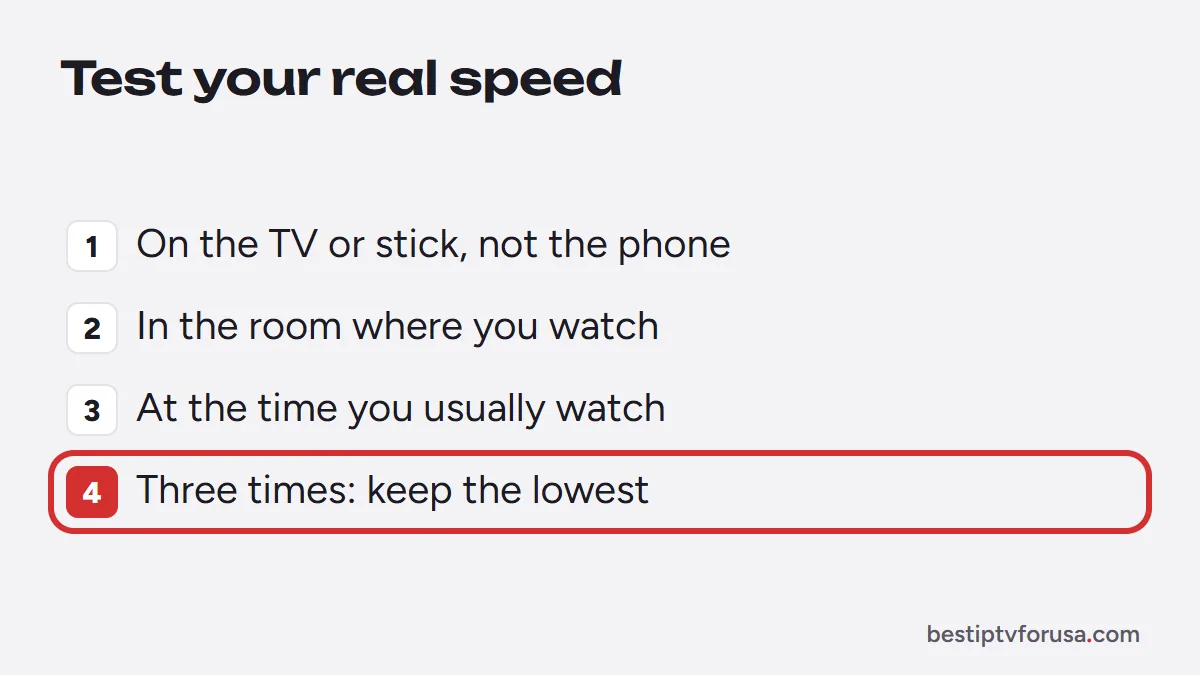
- Test on the TV or stick, not on your phone. Install a speed test app from your device’s app store, or open a speed test website if your TV has a browser.
- Test in the room where you watch. Walls and floors can cut Wi-Fi speed sharply.
- Test at the time you usually watch. Evening results are often lower than morning results.
- Run it three times and keep the lowest result: that is the one your stream has to live with.
If the result is well above what your screens need, your plan is not the problem, and upgrading it will not stop buffering.
Wi-Fi vs Ethernet
Wi-Fi is the most common weak spot in a home network. Try these in order:
- Plug in an Ethernet cable if your TV or box has a port. It is the single most reliable fix.
- Use the 5 GHz Wi-Fi band, which is faster and less crowded than 2.4 GHz, and keep the device within one room of the router.
- Move the router out of cabinets and away from the floor, or add a mesh point near the TV.
- Use an Ethernet adapter for a streaming stick with no port; check that the adapter is made for your model.
Some sticks have weaker Wi-Fi than others. Our comparison of IPTV boxes notes which devices have an Ethernet port.
A quick checklist before you switch
Run through these five points with the TV or stick you will actually use:
| Check | Good result | If not |
|---|---|---|
| Speed test on the device, evening | More than the total for your screens | Move closer to the router or use Ethernet |
| Same test three times | Results close to each other | Unstable Wi-Fi: change channel or band |
| Other devices busy at the same time | Still above the total | Plan for the busiest hour, not the quietest |
| Monthly data cap | No cap, or room for your viewing | Watch in HD rather than 4K |
| Wired option available | Ethernet port within reach | A mesh point or powerline adapter near the TV |
If every line shows a good result, your connection is ready. If one is not, fix that point before deciding that the service or the plan is too slow.
Data caps and how much IPTV uses
Speed and data use are linked. A stream at 10 Mbps uses about 4.5 GB an hour (10 megabits × 3,600 seconds ÷ 8 bits per byte), and a 4K stream at 25 Mbps about 11 GB an hour. Four hours of HD a day is roughly 540 GB a month. If your internet plan has a monthly data cap, check it before switching from cable, or choose HD over 4K on the screens where the difference is hard to see.
When the problem is not your speed
If your speed test is fine but channels still stop and start:
- Restart the TV or stick to clear its memory.
- Clear the player app’s cache in its settings.
- Lower the stream quality for one evening to see if the problem follows the quality or the channel.
- Try a different channel: if only one channel buffers, the issue is on the stream side, so contact support.
For 4K in particular, the device and the TV matter as much as the speed; see what 4K IPTV needs. The simplest way to know whether your connection is ready is to test it with a 24-hour free trial at your usual viewing time.
Questions people ask
What internet speed do I need for IPTV?
About 10 Mbps for each HD screen, 15 Mbps for Full HD and 25 Mbps for 4K, for every screen playing at the same time. Add what the rest of your home uses at that moment.
Does higher internet speed reduce buffering?
Only if speed was the problem. If your plan already gives more than your screens need, buffering usually comes from weak Wi-Fi, an overloaded device or the player app. Test on the device itself before upgrading your plan.
Is 100 Mbps enough for IPTV?
Yes, for most homes. 100 Mbps covers several 4K screens at once with room for phones and computers, as long as the speed reaches the TV and is not lost on a weak Wi-Fi link.
How much data does IPTV use?
A stream at 10 Mbps uses about 4.5 GB an hour, and a 4K stream at 25 Mbps about 11 GB an hour. If your internet plan has a data cap, check it before watching a lot of 4K.
Is Wi-Fi or Ethernet better for IPTV?
Ethernet. A cable gives a steady connection that does not drop when someone uses the microwave or walks between rooms. If you must use Wi-Fi, use the 5 GHz band and keep the device close to the router.

Elmer Wenston writes the BestIPTVforUSA guides on IPTV setup, player apps and devices.