
By Elmer Wenston, updated . 5 min read.
A Downloader code is a short number you type in the Downloader app on a Fire TV to open an app’s download address, instead of typing a long web address with the remote. Downloader is a free app made by AFTVnews and listed in the Amazon Appstore. The codes below cover the player apps we support; each one installs the player only, and your channels come from your IPTV login once you sign in.
Downloader codes for IPTV player apps
| Player app | Downloader code | How you sign in | Price (set by its developer) |
|---|---|---|---|
| IBO Player Pro | 923441 | Device ID, activated for you | 7-day trial, then about $8 once per device |
| TiviMate | 272483 | Xtream Codes or M3U | Free; Premium about $10 a year or $35 lifetime |
| ELK Player | 82854 | Device ID, activated for you | 14-day trial, then about €6 once |
The IBO Player Pro code is the one its developer lists on its official app store, ibo.al (checked October 2026). Several IBO-named apps exist with different codes, so use this one for IBO Player Pro; our guide to the IBO Player Downloader code explains which app is which.
Not sure which one to pick? Our comparison of the best IPTV player apps covers every device. On a Fire TV remote, IBO Player Pro needs no login to type because it is activated with the device ID, and TiviMate shows a full TV guide grid. Our guide to the best IPTV for Firestick compares them.
How to use a Downloader code
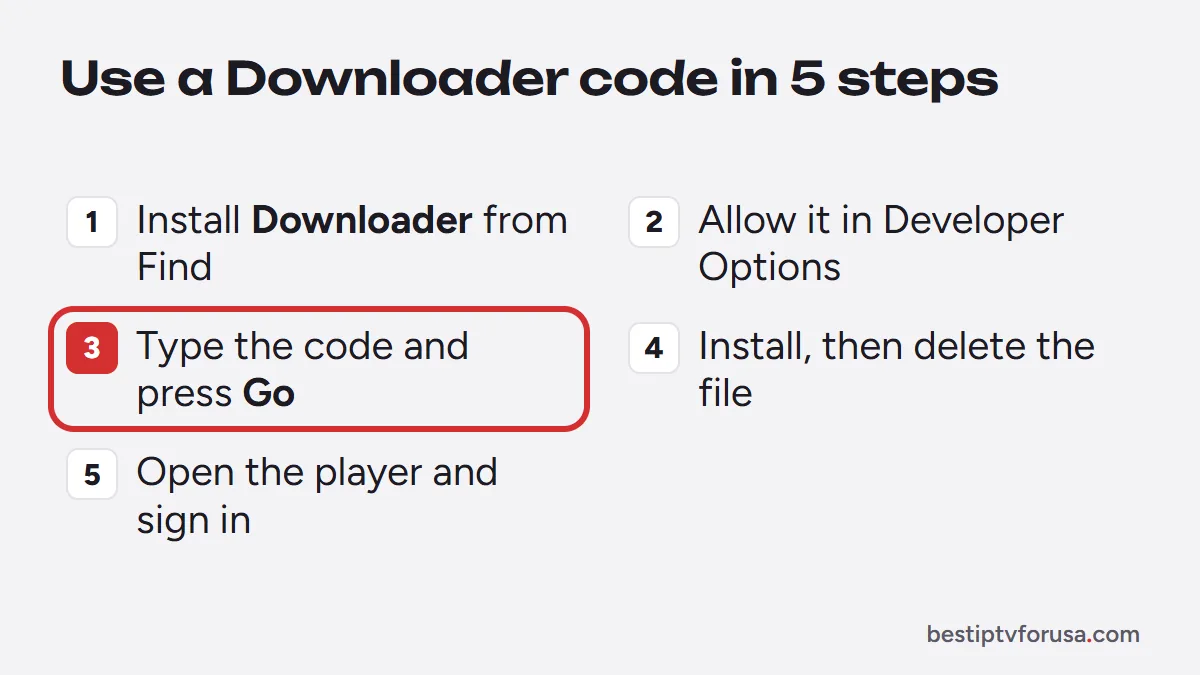
1. Install Downloader
On the Fire TV home screen, open Find, search for Downloader and install it.
2. Allow it to install apps
Go to Settings, My Fire TV, Developer Options, then Install unknown apps, and turn it on for Downloader only. If Developer Options is missing, open Settings, My Fire TV, About, highlight the device name and press select seven times until a message says you are a developer.
3. Enter the code
Open Downloader, select the address box, type the code from the table and press Go. Downloader fetches the installer.
4. Install, then delete the file
Choose Install. When it finishes, Downloader offers to delete the installer file: choose Delete to free space on the stick. The player stays installed.
5. Sign in
Open the player and sign in with the login from your welcome email, or send us the device ID it shows. The full walk-through with screenshots is in how to install IPTV on Firestick.
Fire TV models where Downloader cannot install apps
Since the Fire TV Stick 4K Select (October 2025), new Fire TV Sticks run Amazon’s Vega OS instead of the Android-based Fire OS. On Vega OS, only apps from the Amazon Appstore can be installed, so Downloader codes do not install players there (AFTVnews). Amazon’s developer site states that all future Fire TV Sticks will run Vega; the Fire TV Stick 4K Plus and 4K Max still run Fire OS and install apps with Downloader. If you own a Vega model, look for a player in the Amazon Appstore, such as Hot Player, or use an Android TV or Google TV box.
Apps you do not need Downloader for
Some players are in the Amazon Appstore and install like any other app; Hot Player is listed there for Fire TV in our setup guides. Search for it from the Fire TV home screen. Use the store version whenever an app offers one, because the store keeps it updated for you.
Stay safe with Downloader codes
A code is a shortcut to whatever address its owner chose, and that address can change. Keep these habits:
- Only enter codes for player apps you know. Long lists of codes shared online often point to modified apps, which can carry unwanted software or stop working without notice.
- Turn on Install unknown apps for Downloader only, and switch it off again after installing if you prefer.
- Delete the installer file after each install.
- Keep the player updated from its own settings or by reinstalling from the same code.
- Never enter your Amazon password in an app installed this way.
A player app has no channels of its own. It plays the service you sign in to, so the app you choose changes the look of the guide, not what you can watch.
Which player should you install?
All four apps play the same service; they differ in how you sign in and how the guide looks.
- You hate typing with a remote: IBO Player Pro or ELK Player. You send us the device ID shown on screen and we activate the playlist.
- You want a cable-style guide grid: TiviMate. The free version plays everything; Premium adds extra features, listed on tivimate.com.
- You want a free app with no license: the free version of TiviMate. You sign in with the server URL, username and password from your welcome email. IPTV Smarters used to be the other free choice, but its code 6468112 pointed to the developer’s site, which no longer responds (checked October 2026). Our guide to the IPTV Smarters Downloader code explains what happened.
- You share the TV with others who are not tech-savvy: IBO Player Pro, because there is no login to forget.
You can install two players and keep the one you prefer, but remember that each device playing at the same time counts as one screen on your plan.
Keeping your player up to date
Apps installed with Downloader do not update through the Amazon Appstore. When a player asks you to update, accept it from inside the app if it offers that option. If it does not, open Downloader again, enter the same code and install over the old version: your settings and login usually stay in place. Updating matters because new versions fix sign-in and playback problems, and an outdated player is a common reason a login that works on one device fails on another.
When the code does not work
| Problem | Fix |
|---|---|
| “Code not found” | Check each digit; codes are numbers only |
| Download starts but fails | Free up storage, restart the stick and try again |
| Install button is grayed out | Turn on Install unknown apps for Downloader |
| App installs but will not sign in | Retype the login from your welcome email, see the IPTV Smarters sign-in fixes |
If a code stops working, the developer may have moved the download. Contact support for the current code, or install the app from the address shown on its official site, such as tivimate.com for TiviMate. Once your player is installed, test it with the 24-hour free trial.
Questions people ask
What is the Downloader code for TiviMate?
272483. Type it in the Downloader app's search or address box, then install the file it downloads. TiviMate is also listed on its official site, tivimate.com.
Why can't I download IPTV apps on my Firestick?
Usually because Downloader has not been allowed to install apps. Go to Settings, My Fire TV, Developer Options and turn on Install unknown apps for Downloader. If Developer Options is hidden, open About and press select seven times on the device name.
Can I install IPTV on a Firestick without Downloader?
Yes, for apps that are in the Amazon Appstore, such as Hot Player. Search for the app on the Fire TV home screen and install it like any other app. Downloader is only needed for players that are not in the store.
Are Downloader codes safe?
A code is only as safe as the address behind it. Codes for well-known player apps are fine; codes shared on forums for unknown apps can lead to modified files. Stick to the player apps you know and delete the file after installing.
The Downloader code does not work. What should I do?
Check each digit, make sure the Fire TV is online and update Downloader. If it still fails, the code may have changed: contact support for the current one or type the app's web address instead.

Elmer Wenston writes the BestIPTVforUSA guides on IPTV setup, player apps and devices.