
By Elmer Wenston, updated . 4 min read.
IPTV lagging is a catch-all word for four different problems. The video can stutter, the sound can drift out of sync with the picture, channels can take several seconds to change, or the whole stream can run behind the live broadcast. They have different causes, so the first step is to name the one you see; the fix is usually quick once you know. This guide covers each kind of lag in turn. If the picture stops completely on a frame, see IPTV keeps freezing, and if a loading wheel appears, see our IPTV buffering fix guide.
Which kind of IPTV lag do you have?
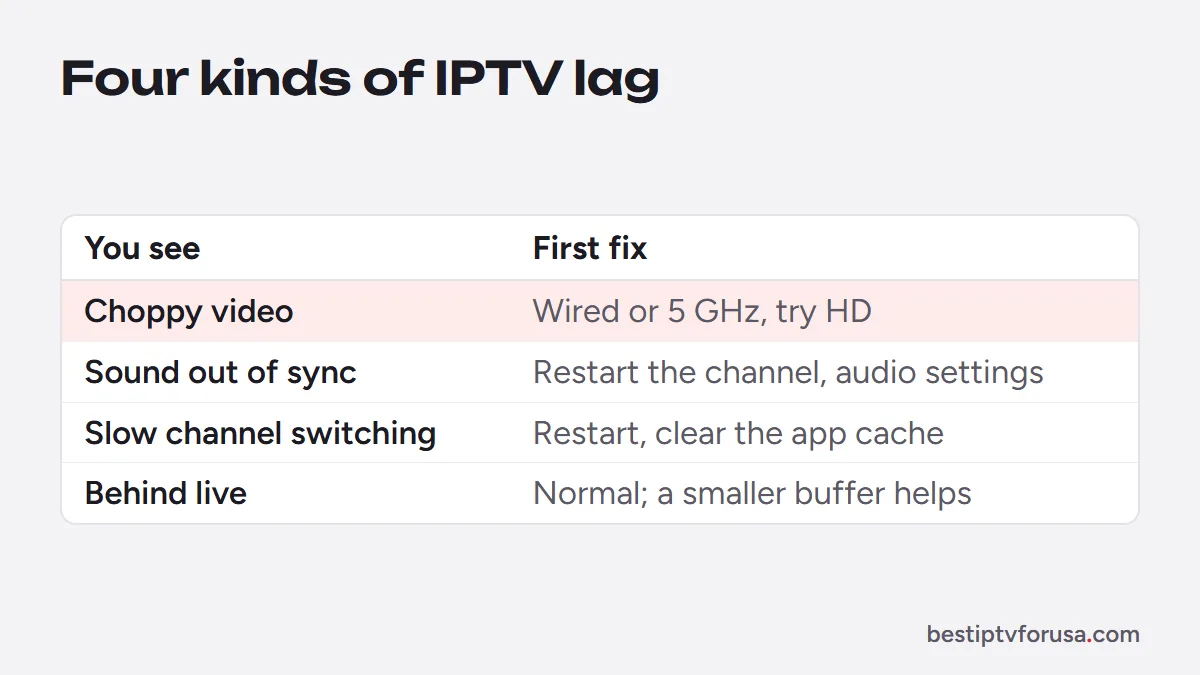
| What you see | Likely cause | First fix |
|---|---|---|
| Choppy or stuttering video | Weak Wi-Fi, busy connection or a device struggling with 4K | Wired or 5 GHz connection; try the HD version |
| Sound ahead of or behind the picture | TV or soundbar audio processing, or the stream itself | Restart the channel, then adjust the audio settings |
| Channels slow to change | Large playlist or guide, low device memory, slow start | Restart the device, clear the app’s cache |
| Stream a few seconds behind live | Normal streaming delay, larger buffer | Accept a few seconds; a smaller buffer starts faster |
Choppy or stuttering video
Stuttering means the video arrives or plays unevenly. Work through these in order:
- Restart the router and the device. Unplug both for 30 seconds, router first back on.
- Improve the connection. An Ethernet cable is best; otherwise use the router’s 5 GHz Wi-Fi band and keep the device in sight of the router. Our guide to internet speed for IPTV gives the speed each screen needs, and the FCC’s broadband speed guide explains typical household needs.
- Watch in HD instead of 4K. 4K needs much more speed and processing; if 4K stutters, the HD version of the same channel often plays smoothly. See our 4K IPTV page.
- Stop other heavy use on the connection, such as downloads and game updates.
- Check the player’s decoder setting. Some players let you switch between hardware and software decoding in their playback settings; if video stutters on a recent device, try the other option.
Audio lag: sound out of sync
When the voices do not match the lips, the delay usually comes from the audio chain rather than the stream:
- Restart the channel. Switching away and back often re-syncs the sound.
- Turn off extra sound processing on the TV or soundbar (surround modes, “enhanced” or night modes), which can add delay.
- Check the audio output setting on the streaming device. If you use a soundbar or receiver, try switching between passthrough and the device’s own decoding.
- Use the player’s audio delay option if it has one. In VLC, the J and K keys shift the audio earlier or later in small steps.
If the sound is out of sync on one channel only, on every device, the stream itself is the cause: tell support which channel and when.
Slow channel switching
Channels that take several seconds to start usually point to the device or the app:
- Restart the device to free its memory.
- Clear the player app’s cache. On Fire TV: Settings, Applications, Manage Installed Applications, select the app, Clear cache.
- Free storage by uninstalling apps you do not use.
- Lower the buffer one step if your player has a buffer size setting: a smaller buffer starts channels faster. Our guide to the best buffer size for IPTV explains the trade-off.
- Try another player. Some apps handle large playlists faster on older sticks; see the best IPTV player apps.
IPTV behind live
A streamed channel always runs a few seconds behind the broadcast, because the video is encoded, sent over the internet and buffered before it plays. That is normal and cannot be removed completely. Two things increase the delay: a larger buffer in your player, and pausing or rewinding, after which the stream continues from where you stopped. Restarting the channel brings you back to the closest point to live.
If a friend watching on cable or an antenna reacts to a goal a few seconds before you, this delay is the reason, not a problem with your setup.
When IPTV lagging is not on your side
If every channel lags on every device at the same time, while other video plays normally on your connection, the cause is on the service side. Note the time and the channels and contact support; our guide Is IPTV down? has a 2-minute check. To see how a service performs at your busiest hour before you pay, use the 24-hour free trial.
Questions people ask
Why is my IPTV lagging?
Most often the Wi-Fi signal is weak, another device is using the connection, or the streaming device struggles with the channel's quality. If only the sound lags, check the TV or soundbar audio settings first.
How do I fix IPTV audio lag?
Restart the channel first. If the sound is still out of sync, turn off extra sound processing on the TV or soundbar, then use the player's audio delay setting if it has one; in VLC, the J and K keys shift the audio.
Does a VPN reduce IPTV lag?
Usually not. A VPN adds a step between you and the server and often slows streams down. Turn it off to test whether the lag improves.
Does buffer size affect lag?
Yes, in two ways. A larger buffer smooths out short drops in the connection, but it also makes channels take longer to start and keeps you a little further behind live.

Elmer Wenston writes the BestIPTVforUSA guides on IPTV setup, player apps and devices.