
By Elmer Wenston, updated . 4 min read.
IPTV keeps freezing for a reason you can usually find in a few minutes. A frozen picture means the player ran out of video to show: the stream did not arrive fast enough, the device could not process it, or the server stopped sending it. Most of the time the reason is at home: a weak Wi-Fi signal, a busy connection, a streaming stick short on memory, or one screen too many. This guide starts with a one-minute check to find where the problem is, then gives 8 fixes in order of effort. For the loading wheel that appears before a channel starts, see our full IPTV buffering fix guide.
Freezing on one channel or on every channel?
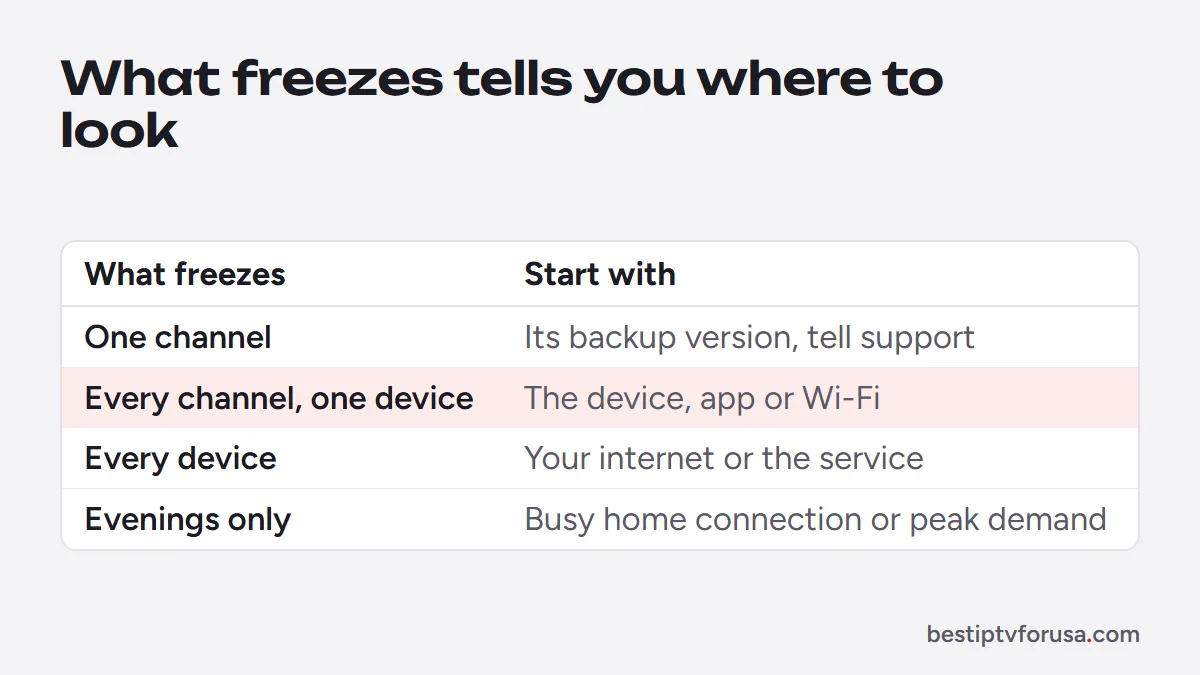
Answer this first; it tells you where to look:
| What you see | Most likely cause | Where to start |
|---|---|---|
| One channel freezes, others play fine | That channel’s source | Try its HD or backup version, report it to support |
| Every channel freezes on one device | The device, the app or its Wi-Fi | Fixes 1 to 6 below |
| Every channel freezes on every device | Your internet or the service | Test other video; see Is IPTV down? |
| Freezes only in the evening | A busy connection at home or peak demand | Fixes 2, 3 and 7 |
8 fixes when IPTV keeps freezing
- Restart the router and the device. Unplug both for 30 seconds, plug the router back first, then the TV device. This clears a lot of temporary problems.
- Improve the connection. Use an Ethernet cable if you can, or the router’s 5 GHz Wi-Fi band, and move the router or stick so nothing blocks the signal. Our guide to internet speed for IPTV gives the speed each screen needs, and the FCC’s broadband speed guide explains typical household needs.
- Stop other heavy use. Downloads, game updates and other streams on the same connection compete with IPTV, especially in the evening.
- Clear the player app’s cache. On Fire TV: Settings, Applications, Manage Installed Applications, select the app, Clear cache. On Android TV: Settings, Apps, select the app, Clear cache.
- Free storage and memory. Uninstall apps you do not use; a nearly full stick slows down and freezes more often.
- Watch in HD instead of 4K. A 4K stream needs much more speed; if 4K freezes, the HD version of the same channel often plays smoothly. See our 4K IPTV page.
- Check the screens in use. If more screens play at once than your plan allows, one of them stops. Our guide to IPTV multiple connections explains the limit.
- Try another player. If one app freezes and another plays the same channel smoothly, keep the one that works; our comparison of the best IPTV player apps helps you choose.
Freezing, buffering or lagging: which one is it?
The three words are often mixed up, and each one points to a different fix:
| Problem | What you see | Main guide |
|---|---|---|
| Freezing | The picture stops on a frame, sometimes with the sound still playing, then jumps ahead | This page |
| Buffering | A loading wheel before or during playback | IPTV buffering fix |
| Lagging | Choppy playback, sound out of sync or slow channel changes | IPTV lagging |
If you see more than one, start with the connection: a steady, fast enough connection fixes most of all three.
Freezing every 10 or 30 seconds
A freeze that comes back at a regular interval, every 10 or 30 seconds, usually means the stream cannot load fast enough to stay ahead of playback. The player catches up, plays a few seconds, then waits again. Common causes:
- A weak Wi-Fi signal that drops for a moment at a time: test with a cable.
- A channel in a quality your connection cannot sustain: try the HD version.
- A player buffer that is too small: some players let you raise it in their playback settings; see our guide to the best buffer size for IPTV.
If it happens on one channel only, note the channel name and the time and send them to support.
IPTV keeps freezing on Firestick
Fire TV Sticks are small computers with limited memory, so they freeze more often when they are full or hot:
- Restart the stick from Settings, My Fire TV, Restart, once in a while.
- Keep free storage by uninstalling apps you do not use and deleting old Downloader files.
- Give it air. A stick squeezed behind the TV can overheat; the HDMI extender that comes in the box moves it away from the TV’s heat.
- Clear the player’s cache as in fix 4.
Our Firestick setup guide covers the rest of the setup.
When it is the service
If every channel freezes on every device at the same time, while other video plays normally on your connection, the problem is not at home. Do not reinstall apps or change settings: note the time and the channels, and contact support. Our guide Is IPTV down? has a 2-minute check to confirm it. And if you are still choosing a service, test how it holds up at your busiest hour with the 24-hour free trial.
Questions people ask
Why does my IPTV keep freezing?
Most often the Wi-Fi signal is weak, another device is using the connection, the streaming stick is short on memory or storage, or too many screens are playing. If only one channel freezes, that channel's source is the cause.
Why does IPTV freeze every few seconds?
A freeze at a regular interval usually means the stream cannot load fast enough to keep up, often over Wi-Fi or in 4K. Try the HD version of the channel and a wired connection; if it continues, tell support which channel.
Does a VPN stop IPTV freezing?
Rarely. A VPN adds a step between you and the server and often slows streams down. Turn it off to test; our guide on VPNs for IPTV explains when one helps.
How do I clear the cache on IPTV?
Clear the cache of the player app, not the service. On Fire TV: Settings, Applications, Manage Installed Applications, select the app, Clear cache. On Android TV: Settings, Apps, select the app, Clear cache.

Elmer Wenston writes the BestIPTVforUSA guides on IPTV setup, player apps and devices.