
By Elmer Wenston, updated . 4 min read.
The best buffer size for IPTV is the smallest one that plays smoothly on your connection. A buffer is the few seconds of video your player loads ahead before it starts playing: if the connection hiccups, the player keeps showing what is already loaded instead of stopping. A larger buffer hides longer hiccups, but it has a cost: channels take longer to start, and you watch a little further behind live. So the right setting depends on your connection, and the method is simple: start from the default and change it one step at a time. This guide explains the trade-off and where the setting is in each player. It is part of our IPTV buffering fix guide.
What buffer size means in an IPTV player
Every IPTV stream arrives over the internet in small pieces. The player stores some of them before it starts, then keeps loading ahead while you watch. That store is the buffer, and its size is measured either in seconds of video, in milliseconds, or as a level such as small or large, depending on the app.
- With a small buffer, channels start quickly and stay close to live, but a short drop in the connection shows as a pause.
- With a large buffer, short drops are hidden, but each channel takes longer to start and stays further behind live.
Best buffer size for IPTV: higher or lower?
Use what you see on screen to decide:
| What you see | Change the buffer | Why |
|---|---|---|
| Short pauses every so often, then playback resumes | Raise it one step | More video in reserve covers the drops |
| Channels take several seconds to start | Lower it one step | Less to load before playback |
| You are far behind live during sports | Lower it one step | Less video stored ahead |
| Long stops or constant loading | Leave it, fix the connection | The connection is too slow for any buffer |
Change one step at a time and watch for a day before changing again, at the hours you usually watch.
Where to change buffer size in each app
The setting is not in the same place in every player, and some players do not offer it at all:
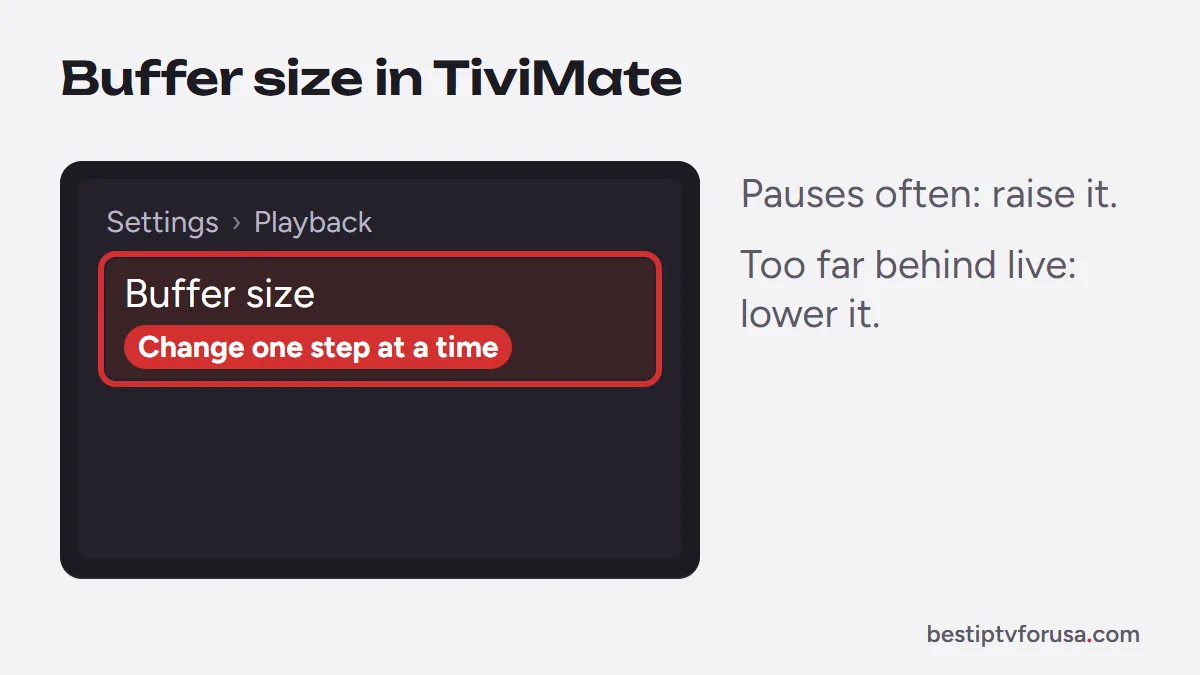
- TiviMate: open Settings, then Playback, and look for the buffer size option; choose one step larger or smaller than the current value. Our TiviMate setup guide covers the rest of the setup.
- VLC media player (computers): open Tools, then Preferences, select All under Show settings, go to Input / Codecs and change Network caching (ms). 1,000 ms is one second; try 3,000 if streams pause. See our IPTV VLC guide.
- IBO Player Pro, Hot Player and other players: look in the playback or player settings for a buffer option. If there is none, the app manages the buffer itself, and the connection fixes below matter more.
Menu names can change between app versions, so follow the words on screen if they differ.
Signs your buffer size is right
You have found the right setting when, over a normal evening of viewing:
- Channels start within a few seconds after you select them.
- Short pauses no longer appear, or appear only rarely, at your busiest hours.
- Live sports stay close to live, a few seconds behind cable at most.
If one of these is off, move the setting one step in the matching direction, using the table above, and check again the next day.
What buffer size cannot fix
A buffer only smooths out short variations. It cannot make up for a connection that is too slow overall, for a weak Wi-Fi signal that keeps dropping, or for a problem on the server side. Before you touch the buffer:
- Check your speed at the TV, at your viewing time; our guide to internet speed for IPTV gives the numbers for HD and 4K, and the FCC’s broadband speed guide explains typical household needs.
- Use a cable or the 5 GHz Wi-Fi band if the device is far from the router.
- Watch in HD if 4K keeps pausing.
If streams still stop, see IPTV keeps freezing and IPTV lagging, which cover the other causes.
Buffer size and live sports
For live games, a small delay matters: a large buffer can put you several seconds behind people watching on cable. If your connection is stable, keep the buffer at the default or one step smaller during games, and raise it again only if pauses appear. To test how a service holds up on your connection during a big game, use the 24-hour free trial.
Questions people ask
What is the best buffer size for IPTV?
There is no single best number: it is the smallest buffer that plays without interruptions on your connection. Start from the player's default and change it one step at a time.
Is a bigger buffer better for IPTV?
Only up to a point. A bigger buffer hides short drops in the connection, but channels take longer to start and you watch further behind live. If streams already play smoothly, a bigger buffer brings no benefit.
What does buffer size limit mean in IPTV apps?
It is the setting, in some players, that caps how much video the app loads ahead. A higher limit hides longer drops; a lower one starts channels faster.
Does a bigger buffer use more data?
Not in a meaningful way. The buffer only loads the same video a little earlier; the total data for an hour of viewing stays about the same.

Elmer Wenston writes the BestIPTVforUSA guides on IPTV setup, player apps and devices.