
By Elmer Wenston, updated . 3 min read.
Jellyfin IPTV setup brings live channels into the same library as your own movies and shows. Jellyfin, the free and open-source media server, has a Live TV feature, and its documentation lists two tuner types: HDHomeRun antenna tuners and M3U, which “allows you to add IPTV channel playlists which you can view and record”. You add your IPTV playlist as an M3U Tuner, add a guide source for the program schedule, and your channels appear in every Jellyfin app. This guide follows Jellyfin’s steps and explains the limits. For other media centers, see our guides to Kodi IPTV and adding IPTV to Plex.
What you need
- A Jellyfin server running on a computer or network storage device at home, with the Jellyfin apps on the devices you watch on.
- Your M3U playlist link, from your IPTV welcome email. It contains your username and password, so keep it private.
- A guide (XMLTV) link for the program schedule. It is separate from the playlist; ask your provider’s support for it if it is not in your email.
Our guide to M3U vs M3U8 explains what the playlist link contains.
Jellyfin IPTV: add your playlist as an M3U Tuner
Jellyfin’s Live TV setup guide describes the manual tuner setup. In short:
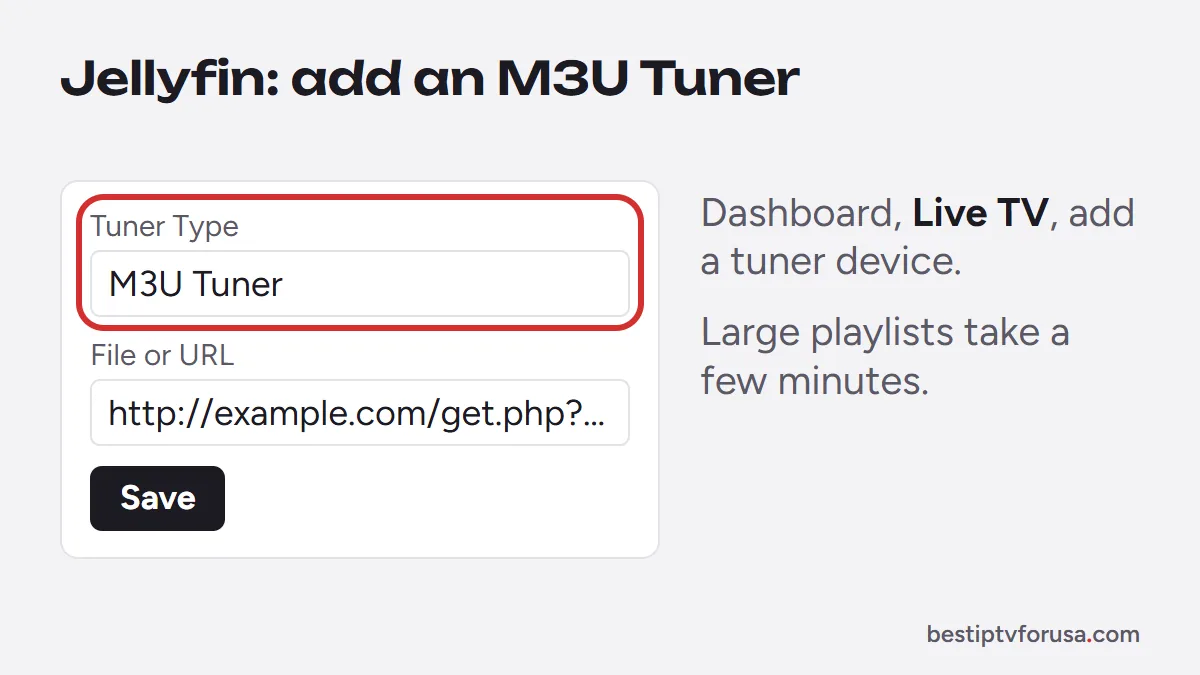
- Open the Jellyfin dashboard as an administrator and go to the Live TV settings.
- Add a tuner device.
- Choose M3U Tuner in the Tuner Type list (the other choices are HDHomeRun and Other).
- Paste your M3U link as the source and save.
Jellyfin then reads your playlist and lists the channels. Large playlists can take a few minutes to load. Menu names can change between Jellyfin versions, so follow the official guide if a label differs.
Add the TV guide
Channels without a guide play fine, but show no program information. To add it:
- In the Live TV settings, add a guide data provider and choose XMLTV.
- Paste the XMLTV link from your provider.
- Map the channels if some do not match: Jellyfin lets you link each playlist channel to its guide entry.
- Refresh the guide data and wait for it to load.
Our guide to what an EPG is explains how the guide links to channels.
Watch on your devices
Once the tuner and guide are set, the Live TV section appears in Jellyfin’s apps, with the channel list and guide. Keep in mind:
- Each stream counts as a screen. Every channel playing at the same time uses one of the screens in your plan, whichever app shows it. Our guide to IPTV multiple connections explains the limit.
- The server must be on. If the Jellyfin server is off or busy, the channels stop on every device.
- Recording is available, as Jellyfin’s documentation notes, with storage on your server.
Jellyfin IPTV not working
If channels or the guide do not appear, check these in order:
- No channels after adding the tuner. The M3U link is incomplete or the plan has ended; copy the link again from your welcome email and check your end date.
- Channels but an empty guide. The guide source is missing, or channels are not mapped to it; map them in the Live TV settings and refresh the guide data.
- Channels buffer in Jellyfin but not in a player app. The server may be converting the video for the device; check the server’s playback settings and its load, and use a wired connection for the server.
- A channel stops when another starts. Your plan’s screen limit is reached; stop playback elsewhere.
Jellyfin’s Live TV documentation covers the server settings, and our guide to IPTV error codes explains the errors a stream can return.
Jellyfin vs Plex vs a player app
| Jellyfin | Plex | IPTV player app | |
|---|---|---|---|
| IPTV support | Built in (M3U Tuner) | Needs a bridge tool | Built in |
| Needs a home server | Yes | Yes | No |
| One library with your own media | Yes | Yes | No |
| Setup effort | Moderate | Highest, with a bridge | Lowest |
| Cost | Free, open source | Free and paid tiers | Free versions or a small fee |
If you already run Jellyfin, adding IPTV is a natural next step. If you only want to watch live TV, a player app on the TV is simpler; our comparison of the best IPTV player apps helps you choose. Either way, you can test the playlist first with the 24-hour free trial.
Questions people ask
Can Jellyfin be used for IPTV?
Yes. Jellyfin's Live TV feature accepts an M3U Tuner, which reads your IPTV playlist, and a guide source for the program schedule. Your channels then appear in the Live TV section of Jellyfin's apps.
How do I add an M3U to Jellyfin?
In the Jellyfin dashboard, open Live TV, add a tuner device, choose M3U Tuner as the tuner type and paste your M3U link. Then add a guide source and map the channels.
Does Jellyfin show the TV guide for IPTV?
Yes, once you add a guide source such as an XMLTV link and the channels are mapped to it. Without a guide source, the channels play but show no program information.
Does each Jellyfin stream use a screen?
Yes. Jellyfin passes your IPTV streams to its apps, so every channel playing at the same time counts toward the screens in your plan.

Elmer Wenston writes the BestIPTVforUSA guides on IPTV setup, player apps and devices.