
By Elmer Wenston, updated . 4 min read.
A VPN for an IPTV box is simply an app from your VPN provider, installed on the same device as your IPTV player. On a Fire TV you get it from the Amazon Appstore, on an Android TV or Google TV box from Google Play; you sign in, connect, then open your player as usual. Smart TVs and Apple TV usually have no VPN apps, so there the VPN goes on the router. A VPN is not required to watch IPTV and can slow streams down, so this guide also shows how to check it is not hurting your picture. Whether you need one at all is covered in our guide Do you need a VPN for IPTV?.
Do you need a VPN on your IPTV box?
Not to watch: IPTV works without a VPN. People add one mainly for privacy, for example on a public or shared Wi-Fi network, where the US Federal Trade Commission recommends caution in its guide to public Wi-Fi. The cost is speed: a VPN routes your traffic through an extra server, which can reduce bandwidth and add delay, and that matters for live video. If you use one, use it as a choice for privacy, and turn it off if streams suffer.
Install a VPN on a Fire TV
- Find your VPN provider’s app. On the Fire TV home screen, search the Amazon Appstore for your provider’s name and install the app.
- Sign in with your VPN account.
- Choose a server close to you; nearer servers usually mean faster streams.
- Connect, and accept the connection request the Fire TV shows the first time.
- Open your IPTV player. Channels now go through the VPN.
If your provider has no Fire TV app, check its help pages for other options; avoid installing VPN apps from unknown websites. Our Firestick setup guide covers the player side.
Install a VPN on an Android TV or Google TV box
The steps are the same, from Google Play:
- Open Google Play on the box, search for your VPN provider and install its app.
- Sign in, choose a nearby server and connect; allow the connection request.
- Open your IPTV player.
Some VPN apps offer a setting to turn on the VPN automatically when the box starts. Our Android TV setup guide covers the players.
Smart TVs, Apple TV and the router option
Samsung and LG smart TVs generally have no VPN apps in their stores, and Apple TV depends on what each VPN provider offers. The usual solution is the router: many routers can connect to a VPN themselves, which then covers every device in the home, TVs included. Follow your router maker’s and your VPN provider’s instructions.
Keep in mind that a router VPN slows everything on the network, not just IPTV, and keep a simple way to switch it off for testing.
Test your streams with and without the VPN
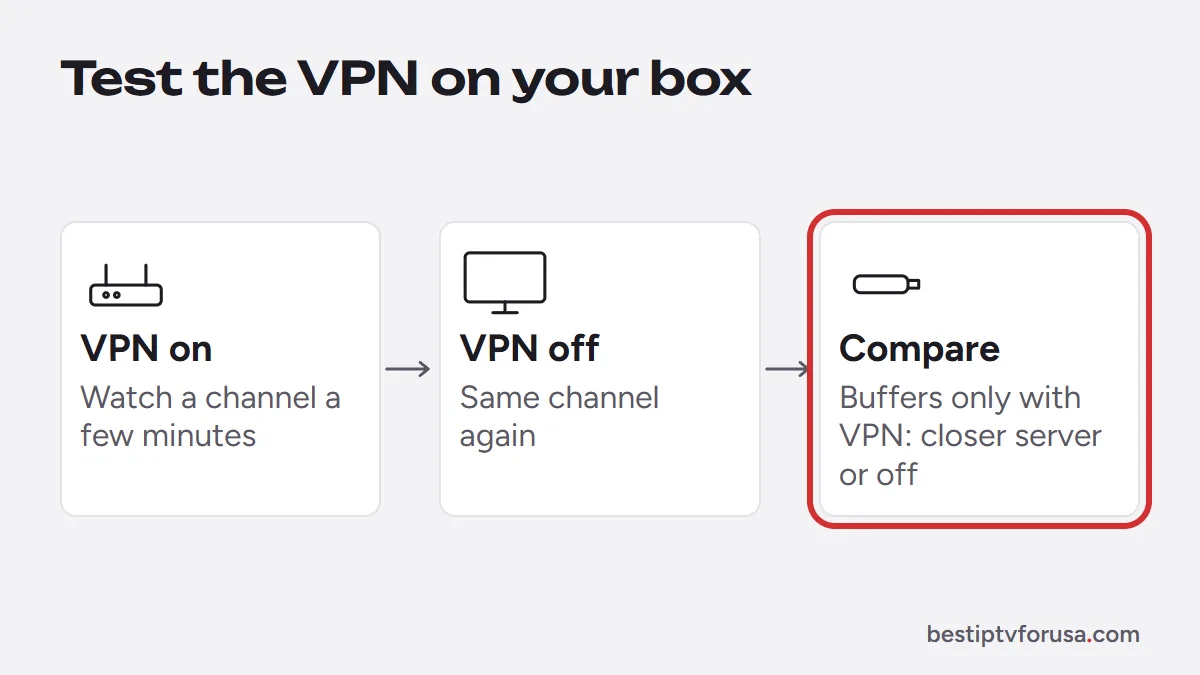
Why the VPN can slow streams, and the rare case where it helps, are covered in Does a VPN stop buffering?.
A quick comparison tells you whether the VPN costs you picture quality:
- Watch a channel for a few minutes with the VPN connected, at your usual viewing time.
- Disconnect the VPN and watch the same channel again.
- Compare. If it buffers only with the VPN on, pick a closer server or turn the VPN off while watching.
If streams buffer either way, the cause is elsewhere: see our IPTV buffering fix guide, and our guide to IPTV error codes if an error appears.
A VPN on the newest Fire TV Sticks
The newest Fire TV Sticks run Vega OS and only install apps from the Amazon Appstore. That does not block VPN apps as such: if your provider publishes its app in the Amazon Appstore for these models, it installs like any other. If it does not, the router option above is the alternative. Our comparison of Fire TV vs Google TV explains which models run Vega OS.
When to keep the VPN off
Even if you use a VPN at other times, there are moments when it is better off:
- During live sports or events, when every second of delay and every drop in speed shows.
- When testing a problem, so you know whether the VPN or the connection is the cause.
- On your own home network, if you only use the VPN for privacy on public Wi-Fi.
Common VPN problems on IPTV boxes
- Channels will not load with the VPN on. Some servers refuse connections through VPN networks; disconnect and test, then contact support if channels only fail with the VPN.
- The VPN disconnects on its own. Check the VPN app’s settings for an always-on or reconnect option, and keep the app updated.
- The box feels slow. Older sticks have limited processing power; encryption adds load. Test without the VPN.
To check how the service runs on your box, with or without a VPN, request the 24-hour free trial.
Questions people ask
How do I use a VPN on my IPTV box?
Install your VPN provider's app from the Amazon Appstore (Fire TV) or Google Play (Android TV), sign in, choose a server and connect. Then open your IPTV player as usual.
Does a VPN slow down IPTV?
It can. A VPN sends your traffic through an extra server, which can reduce speed and add delay. If channels buffer with the VPN on, turn it off or pick a closer server.
Which IPTV app has a built-in VPN?
A few players include a VPN option in their settings. If yours does not, use your VPN provider's own app on the same device.
Can I put a VPN on my router?
Many routers support a VPN connection, which then covers every device at home, including smart TVs. Follow your router maker's and VPN provider's instructions, and keep a way to turn it off for testing.

Elmer Wenston writes the BestIPTVforUSA guides on IPTV setup, player apps and devices.