
By Elmer Wenston, updated . 4 min read.
The TiviMate Companion app is a small Android app with two jobs: it unlocks TiviMate Premium on devices that have no Google Play, such as a Fire TV, and it lets you manage the devices activated on your Premium account. Its Google Play listing states both points plainly, and adds that it is not an IPTV player (TiviMate Companion on Google Play). You keep watching in TiviMate on the TV. For what Premium adds and costs, see our guide to TiviMate Premium.
What the companion app does, and does not do
| It does | It does not |
|---|---|
| Sell and unlock TiviMate Premium for devices without Google Play | Play live TV, movies or series |
| Link Premium to your TiviMate account | Include any channels or content |
| List the devices activated on your account | Replace TiviMate on the TV |
| Let you remove a device to free its place | Install TiviMate itself |
TiviMate’s own site describes the player as a media player only, with paid upgrades that unlock app features rather than content (tivimate.com).
Why it exists
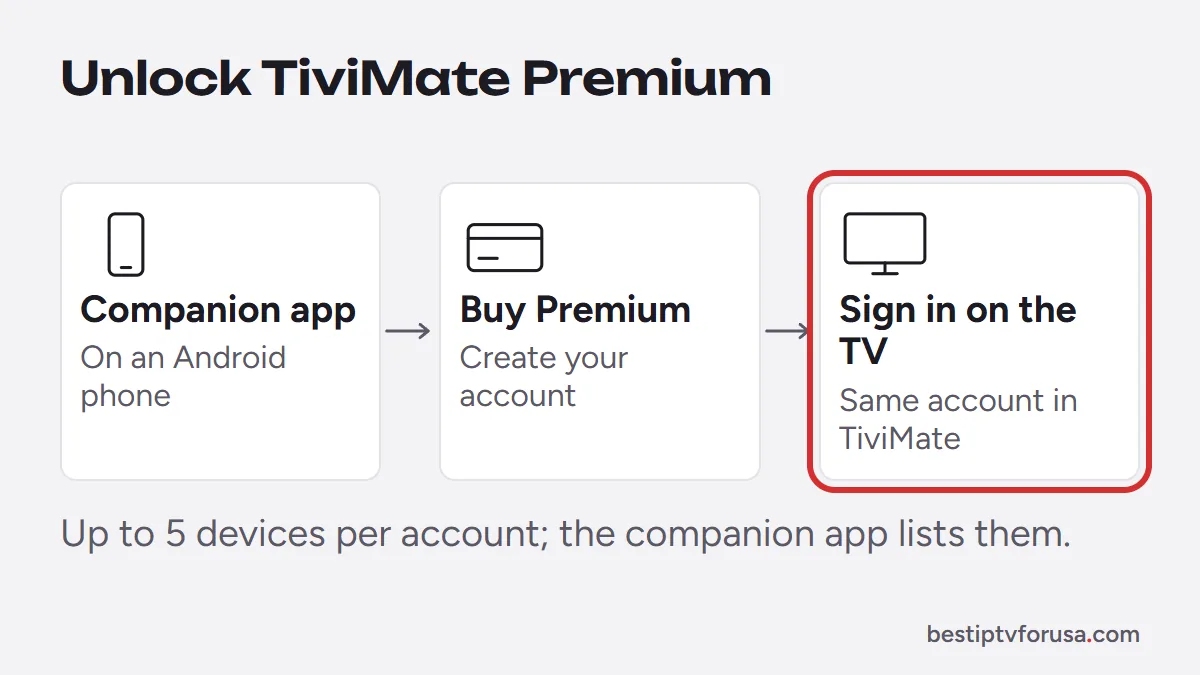
TiviMate runs on Android TV devices and Android phones. A Fire TV has no Google Play, so there is no store to buy Premium on the TV itself. The companion app solves that: you buy on an Android phone or tablet, and the purchase follows your account to the TV. The phone does not need to stay near the TV afterwards: once Premium is linked to your account, the TV only needs you to be signed in with the same account.
How to unlock TiviMate Premium with the companion app
- Install TiviMate on the TV. On a Fire TV it installs with Downloader code 272483; our list of Downloader codes has the steps.
- Install TiviMate Companion on an Android phone or tablet from Google Play.
- Buy Premium in the companion app and create or sign in to your TiviMate account.
- On the TV, open TiviMate and sign in with the same account.
- Check that Premium features are available in TiviMate, then add or keep your playlist.
The playlist itself, your IPTV login, is added in TiviMate on the TV as usual; the TiviMate setup guide shows how.
Managing your activated devices
Premium covers a limited number of devices, up to 5 at the time of writing. The companion app shows which devices are using your account. Use it when:
- you replace a Fire TV stick or a box: remove the old device, then sign in on the new one;
- you reset a device to factory settings: check the list and remove any entry you no longer use;
- you reach the device limit: remove one you no longer use.
Keep the email address you used for the purchase: you need it to sign in on every TV. Each device you activate uses one place on your account.
TiviMate free vs Premium at a glance
| Free TiviMate | With Premium (unlocked through the companion app on a Fire TV) | |
|---|---|---|
| Plays your IPTV service | Yes | Yes |
| TV guide grid | Yes | Yes |
| Extra features such as recording and several playlists | No | Yes |
| Devices | No limit stated | Up to 5 at the time of writing |
| Cost | Free | About $10 a year or $35 lifetime |
Prices are set by TiviMate’s developer and can change; the full breakdown is in our guide to TiviMate Premium.
Step by step: replacing a Fire TV stick
- On your Android phone, open TiviMate Companion and sign in.
- Find the old Fire TV stick in the list of activated devices and remove it.
- On the new stick, install TiviMate with Downloader and open it.
- Sign in with the same TiviMate account; Premium becomes active on the new stick.
- Add your IPTV playlist with the login from your welcome email, and refresh the TV guide.
The same steps apply when you move TiviMate to an Android TV box or reset a device.
Common questions and problems
| Problem | Likely cause | Fix |
|---|---|---|
| Premium not active on the TV | Signed in with a different account | Sign in on the TV with the account used in the companion app |
| Cannot install the companion app | No Android phone or tablet | Use any Android device with Google Play, even a borrowed one |
| Device limit reached | Old devices still listed | Remove unused devices in the companion app |
| Channels missing after upgrading | Premium does not add channels | Channels come from your IPTV service; check your playlist |
Do you need the companion app at all?
You need it if you want TiviMate Premium on a device without Google Play, or to manage your activated devices. If the free version of TiviMate covers what you watch, you can skip it. Our comparison of the best IPTV player apps also covers players that need no paid upgrade at all.
Try TiviMate with a free login
Install TiviMate, request a 24-hour free trial and add the login from your email. Use the free version for a while, and add Premium through the companion app only if you miss a feature such as recording.
Questions people ask
What is the TiviMate Companion app?
An Android app from Google Play that unlocks TiviMate Premium on devices without Google Play, such as a Fire TV, and lets you manage the devices activated on your Premium account. It does not play channels.
Do I need TiviMate Companion?
Only if you want TiviMate Premium on a device without Google Play, such as a Fire TV, or if you want to manage your activated devices. The free version of TiviMate works without it.
Can I install TiviMate Companion on a Fire TV?
It is meant for an Android phone or tablet with Google Play. You buy Premium on the phone, then sign in with the same account in TiviMate on the Fire TV.
Does TiviMate Companion work on iPhone?
No. It is an Android app in Google Play. To buy Premium for a Fire TV, use an Android phone or tablet.
How many devices can I activate?
TiviMate Premium covers up to 5 devices at the time of writing. The companion app lists the activated devices and lets you remove one to free its place.

Elmer Wenston writes the BestIPTVforUSA guides on IPTV setup, player apps and devices.